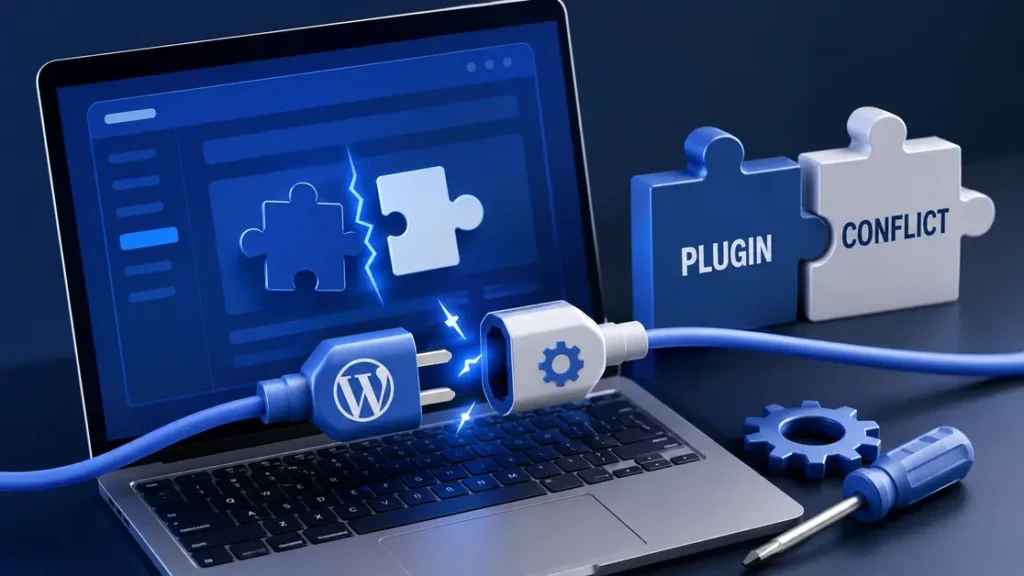
When a WordPress site starts throwing errors after a new install or update, the fix is usually a plugin conflict. The safest move is to isolate the problem one change at a time, starting with a backup and ending with the exact plugin, theme, or setting that caused the break.
A lot of people panic, disable everything at once, and then spend the next hour trying to rebuild the site from memory. That is how small plugin issues turn into bigger problems.
What does a plugin conflict look like?
A plugin conflict usually shows up right after a change. You install a form plugin, update a page builder, or activate a cache tool, and then a part of the site stops working.
Here are a few real-world signs:
- A contact form submits, but no email arrives.
- A product page loads, but the “Add to Cart” button does nothing.
- The WordPress dashboard opens, yet one settings page gives a blank screen.
- A slider, gallery, or menu looks fine in one browser and broken in another.
One common example is a WooCommerce store that works normally until a new shipping plugin is activated. The checkout page may start looping, or the total price may disappear. That points to a plugin conflict, not a random crash.
| Symptom | Common cause | First thing to check |
|---|---|---|
| White screen on one page | Plugin or theme code error | Recent plugin update |
| Broken layout | Page builder or CSS plugin clash | Active theme and cache |
| Form not sending email | SMTP, form, or security plugin issue | Mail settings and recent installs |
| Checkout failure | WooCommerce extension conflict | Shipping, payment, or coupon plugins |
The key is timing. If the problem starts right after one change, that change is the first suspect.
Also Read: Easy Tips to Make Your Website Faster and Easier to Use.
Why do plugin conflicts happen?
WordPress plugins are made by different developers, and they do not all speak the same code language. Some are built carefully. Others are patched often and tested less.
Here are the most common reasons:
- Two plugins try to do the same job.
- A plugin is outdated and no longer matches your WordPress version.
- A new version changes how a script loads.
- A plugin depends on a theme file or PHP feature that is missing.
- Caching, minification, or security tools block a script from running.
A simple example: two plugins both try to load jQuery in their own way. One of them wins, the other fails, and suddenly your dropdown menu stops opening on mobile. The site is still online, but a small part of it is broken.
That is why plugin conflict fixes are less about guessing and more about testing. You are trying to prove which part fails and which part still works.
How to fix a plugin conflict without breaking your site
This is the part people rush. Don’t.
If the site is live and serving traffic, take the slow path. A clean fix takes a few extra minutes. A sloppy fix can cost you sales, leads, or a few hours of work.
1) Make a full backup first
Before you touch anything, back up both files and database. Not just one.
A backup from a plugin like UpdraftPlus, BlogVault, or your host’s built-in tool gives you a way back if the site gets worse. On a small brochure site, a backup may take 5 to 10 minutes. On a larger store with thousands of orders, it can take longer.
Example: if you are running a client site with 40 plugins and the checkout page is failing, a backup lets you test without fear. If a rollback goes wrong, you are not starting from zero.
2) Check the last change you made
Start with the newest thing first.
That could be:
- a plugin update
- a new plugin install
- a theme update
- a PHP version change
- a cache rule or minify setting
If the problem started right after a plugin update at 9:15 a.m., test that plugin first. In my experience, that saves the most time. People often inspect old plugins they have not touched in months, even though the break happened five minutes after an update.
A good question to ask is simple: what changed right before the site broke?
3) Deactivate plugins one at a time
This is the most reliable way to track down a plugin conflict.
Do it in this order:
- Deactivate the newest plugin first.
- Refresh the broken page.
- If nothing changes, reactivate it.
- Move to the next recent plugin.
- Keep testing until the issue disappears.
If you manage a site with 20 plugins, you should not remove all 20 at once unless you are testing in staging. One-by-one testing may feel slower, but it gives you proof.
A practical case: a page builder site breaks its hero banner after a popup plugin update. You disable the popup plugin, and the banner returns. That tells you the issue is not “WordPress itself.” It is one plugin touching another plugin’s scripts.
4) Use a staging site for the risky part
If your host gives you staging, use it. If not, make one before testing major plugin issues on a live site.
Staging is the copy where you can disable plugins, switch themes, and test updates without affecting visitors. A client store with 300 daily visitors should never be used as the testing lab.
A staging site is especially useful if:
- the site gets sales or leads every day
- the admin area is still working, but the front end is broken
- you need to test several plugins in one session
- you do not know which extension caused the issue
Think of staging like a spare workbench. You try the repair there first, then move the fix to the real site.
5) Switch to a default theme to rule out theme conflicts
Sometimes the plugin is not the only problem. The theme can join the mess.
Switch briefly to a default WordPress theme like Twenty Twenty-Four and check the site again. If the issue disappears, the problem may be between the theme and one plugin.
Example: a site uses a custom theme with an advanced mega menu. After installing a header plugin, the menu stops responding on tablets. Turning on a default theme makes the menu work again. That points to a theme conflict, not a broken server.
You do not need to leave the default theme active for long. Just enough to confirm the source.
6) Check PHP, caching, and browser issues
Not every broken page is caused by a plugin conflict. Sometimes the trouble comes from the environment around it.
Check these:
- PHP version: a plugin may require PHP 8.0 or higher.
- Cache plugin: purge cache after every change.
- CDN: if you use Cloudflare or another CDN, clear that cache too.
- Browser: test in incognito mode or another browser.
- JavaScript errors: open DevTools and see whether scripts fail.
A site that looks broken in Chrome on one laptop may still work in Firefox on another. That does not mean the plugin is innocent, but it does mean the issue may be tied to script loading or cached files.
One common case is a minification setting that combines scripts too aggressively. A contact form looks fine to the owner, but visitors get a spinner that never ends. Turning off script combine in the cache plugin can solve it in under 10 minutes.
7) Roll back the problem update
If the issue began after an update, rollback is often the cleanest fix.
You can:
- restore the previous plugin version
- restore the previous theme version
- revert to the last known good backup
This helps when the update itself is the cause. A plugin may have worked yesterday and fail today after a new release. That happens.
Example: a security plugin update changes how it handles admin scripts, and the page editor starts freezing. Rolling back to the prior version fixes the editor immediately. Later, you can test the newer release in staging.
Rollback is not a long-term plan, but it buys you stability.
Also Read: Website Maintenance and Performance Improvement Plans.
What should you do on a live site?
Live sites need damage control. Your goal is not to be clever. Your goal is to keep the site usable while you find the problem.
Follow this order:
- Put the site in maintenance mode if the front end is badly broken.
- Back up the site.
- Check traffic and key pages first: home, contact, cart, checkout, signup.
- Test the newest plugin or update.
- Use staging if the fix needs more than one quick change.
- Tell the client or team what changed and what you found.
A local business site with a broken contact form is a perfect example. Visitors may still browse, but no leads are coming in. In that case, the form issue matters more than a minor layout bug on an internal page.
Be careful with admin access too. If the dashboard is still available, you have options. If the dashboard is down, you may need to rename the plugin folder through FTP or file manager to regain access. That is a stronger move, so use it only when needed.
How do you prevent plugin conflicts later?
Prevention saves more time than repair.
Here’s what actually helps:
- Keep a plugin list that you review every month.
- Remove plugins you do not use.
- Update one plugin at a time, not all at once.
- Test major changes on staging first.
- Use well-maintained plugins with recent updates and clear support history.
- Avoid installing two plugins that do nearly the same thing.
A real example: a site has three different form tools because each team member installed their favorite one. That setup almost always causes trouble later. Two forms plugins plus a mail delivery plugin can create duplicate scripts, extra load, and odd submission errors.
Also, write down what changed. A short log like “May 14: updated Elementor Pro; May 14: header menu broke; May 15: rolled back plugin” makes future fixes much faster.
This is one of the things most site owners skip. Then, six months later, the same issue returns, and nobody remembers why.
What mistakes make WordPress errors worse?
A bad fix can turn a small plugin conflict into a bigger repair job.
Avoid these mistakes:
- deactivating every plugin at once on a live site
- changing the theme before checking the latest plugin update
- clearing only one cache layer and forgetting the CDN
- editing plugin files directly instead of using rollback
- assuming the server is broken before checking browser scripts
Here is a common scenario. A user sees a blank checkout page, disables all plugins, and the site starts working again. Great, right? Not really. Now they have no clue which plugin caused the issue, so the same problem can return next week.
Another mistake is ignoring PHP warnings. A plugin may still “work,” but it may be throwing errors in the background. Those warnings can cause slow pages, random glitches, or admin screens that refuse to save.
How to tell whether it is a plugin, theme, or server issue
This quick test helps sort things out fast.
- If the issue starts after a plugin install or update, suspect the plugin first.
- If the issue disappears when you switch themes, suspect the theme.
- If errors happen across the whole site, in the admin area and front end, check server or PHP settings.
- If the site only breaks after cache is turned on, check the cache plugin or CDN.
A small comparison like this can save an hour:
| Test | What it tells you |
|---|---|
| Disable one plugin | Finds the exact conflict source |
| Switch to default theme | Checks theme involvement |
| Purge cache | Rules out stale files |
| Test in another browser | Rules out browser-specific scripts |
| Check PHP error logs | Finds hidden code problems |
That sequence is simple, but it works.
A safer routine for fixing plugin conflicts
If you want a process you can reuse, follow this one every time:
- Back up the site.
- Note the exact error.
- Check the most recent change.
- Deactivate the newest plugin.
- Test the page again.
- Switch to a default theme if needed.
- Clear all caches.
- Roll back the update if the problem started there.
- Retest on staging before reapplying the change live.
That routine is boring. Good. Boring is what you want when a site is broken.
Also Read: Responsive Website Builds Focused on Speed and SEO.
FAQ
What is a plugin conflict in WordPress?
A plugin conflict happens when two plugins, or a plugin and a theme, try to do something in a way that causes errors or breaks a feature. A form not sending email after a new update is a common example.
How do I find which plugin is causing the problem?
Disable plugins one at a time, starting with the newest one. Refresh the broken page after each test. The plugin that makes the problem disappear is usually the source.
Can a plugin conflict break the whole site?
Yes. A bad script, PHP error, or outdated extension can cause a white screen, a broken dashboard page, or a checkout failure. A smaller issue may only affect one section, like a menu or slider.
Should I delete a plugin after it causes errors?
Not right away. First test whether a rollback or configuration change fixes the issue. If the plugin keeps causing problems and has poor support, removing it is usually the better choice.
Is it better to fix plugin conflicts on a live site or staging?
Staging is safer for anything beyond a quick test. A live site is fine for checking a single plugin, but larger changes should be tested on a copy first.
Why do WordPress errors show up after updates?
Updates can change scripts, settings, or compatibility with the theme, PHP version, or another plugin. That is why a site can work perfectly on Monday and show plugin issues on Tuesday.
Conclusion
The safest way to fix a plugin conflict is simple: back up first, test one change at a time, and confirm the cause before you touch anything else.
For more useful articles, visit my website: HighSoftware99.