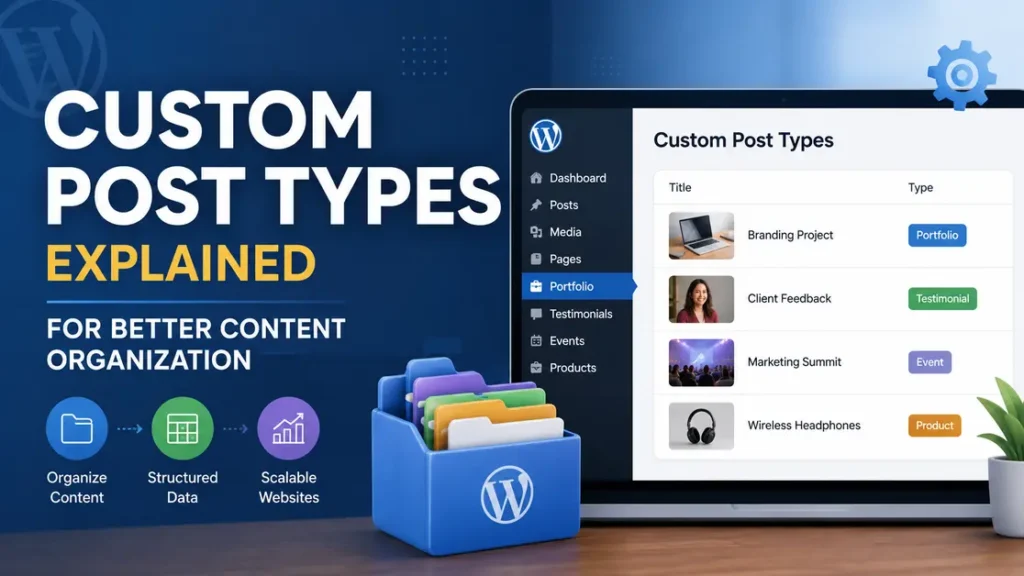
Custom post types are a way to give different kinds of content their own structure in WordPress. Instead of forcing everything into standard posts, you can create separate content types for things like recipes, portfolio items, listings, testimonials, courses, or job ads.
That matters more than it sounds. A food blog with 300 recipes does not behave like a news site with daily articles, and a real estate site does not need every property treated like a normal blog post. Once a site grows past a few dozen pages, this is where custom post types start saving real time.
Here’s the basic idea: one type of content gets one job. A recipe page can have ingredients, cook time, serving size, and difficulty level. A job post can have salary range, location, and application deadline. That kind of wordpress content is easier to build, easier to edit, and easier for readers to scan.
Why Does Content Structure Matter So Much?
Good content structure keeps a site from turning into a pile of mixed-up pages. If every item on your site is just a blog post, your editor, your team, and your readers all have to work harder than they should.
Picture a fitness site with 120 workouts, 80 articles, 40 trainer profiles, and 25 equipment reviews. If all of that sits in one post feed, the admin area becomes messy fast. A writer looking for “workouts” should not have to sort through gear reviews from last year.
There is a practical side too. Clean structure makes reporting, filtering, and updating easier. If a property site has one custom post type for apartments and another for houses, the team can update 18 apartment listings without touching the rest of the site. That is a real workflow gain, not just a technical detail.
Also Read: Easy Tips to Make Your Website Faster and Easier to Use.
How Do Custom Post Types Work in WordPress?
WordPress already has built-in post types like Posts and Pages. Custom post types add more buckets for specific content. Each bucket can have its own labels, fields, archive page, and template.
Think of it like a filing cabinet. Standard posts are one drawer. Custom post types create separate drawers for recipes, events, reviews, or case studies. That is much cleaner than stuffing everything into the same folder and hoping categories will fix it.
A simple example helps. A travel site might create:
- Destinations
- Hotel Reviews
- Travel Guides
Each one can show different fields. A hotel review might need star rating, location, and price range. A travel guide might need best season, estimated budget, and transport tips. That is why custom post types fit so well on content-heavy sites.
When Should You Create One?
Create a custom post type when the content has its own purpose, repeated fields, and a clear way readers expect to use it. If the content needs the same kind of data every time, that is a strong sign.
A few clear signs:
- You keep adding the same fields by hand.
- Readers need to filter items by type.
- Editors waste time using workarounds.
- A category is doing too much work.
Here is a real-world example. A coaching business might start with blog posts for client stories, services, and testimonials. After 50 posts, that becomes hard to manage. At that point, testimonials deserve their own structure because they are not really articles. They are proof points.
But do not create a custom post type just because it sounds organized. A site with 12 blog posts does not need three extra content types. That only adds overhead.
Also Read: Content Promotion Services to Increase Brand Visibility.
How Do Custom Post Types Help Readers?
Readers feel the difference even if they never see the admin side. They can browse a site faster when content is grouped in a way that makes sense.
Say a software company has case studies, product updates, and help articles. If all three appear in one feed, the page feels random. A reader looking for setup help does not want to scroll past launch news from six months ago. A separate structure reduces that friction.
This also improves internal consistency. A case study can show client name, industry, challenge, solution, and result. That format makes it easier for a visitor to compare one story with another. It also gives the site a stronger rhythm, which helps trust.
How Do You Set Up Custom Post Types?
You can set them up with a plugin or with code. Both approaches work. The better choice depends on how much control you need and who will maintain the site later.
A plugin is the easier route for many sites. Tools like custom post type builders let you create labels, menu icons, archives, and custom fields without writing PHP. That is useful for a small business site where one person may handle both publishing and updates.
Code gives more control. Developers often register a custom post type in a theme or plugin so it stays stable and portable. That is the better route when the site has a long life ahead of it. A directory with 500 listings should not depend on a settings screen that someone might forget to export.
A simple setup often looks like this:
- Decide the content type.
- List the fields it needs.
- Choose whether it needs an archive page.
- Add templates for display.
- Test how it looks on mobile.
That last step matters more than people think. A directory card with five fields may look fine on desktop and terrible on a phone. I have seen that happen on local business sites more than once.
Also Read: Website Maintenance and Performance Improvement Plans.
What Fields Should You Add?
Start with the facts that repeat. Do not build a field for every tiny detail just because you can.
For a restaurant site, useful fields might be:
- Cuisine type
- Price range
- Location
- Opening hours
- Reservation link
For a course site, useful fields might be:
- Duration
- Skill level
- Instructor name
- Lesson count
- Course format
Notice the pattern. Each field answers a question a visitor would actually ask. That is the right test. If the field does not help a reader decide, compare, or act, it probably does not belong.
This is where wordpress content becomes easier to maintain. An editor does not have to remember where to place a price, a city, or a lesson count inside a paragraph. The site stores the information in the same place every time.
Also Read: Paid Ad Management to Grow Targeted Website Leads Fast.
What Is the Best Way to Name and Group Content?
Use names people understand right away. “Projects” is clearer than “Work Items.” “Events” is clearer than “Occurrences.” Good names reduce mistakes before they happen.
Taxonomies help here too. Taxonomies are the grouping labels you use to sort content inside a custom post type. For a recipe site, that might mean cuisine, meal type, or difficulty. For a learning site, it might mean topic, level, or format.
A tiny example: a recipe database with 200 recipes can use “breakfast,” “lunch,” and “dinner” as meal-type taxonomies. That is much better than tagging every recipe with random labels like “fast,” “easy,” or “healthy” and hoping users can filter them later. The grouping needs a clear job.
Custom Post Types vs Categories and Tags
This part confuses a lot of people, so let us keep it plain.
Categories and tags organize content inside one post type. Custom post types create a different kind of content.
Use this simple rule:
- Categories/tags help sort similar articles.
- Custom post types help separate different kinds of content.
A travel blog can use categories like “Europe,” “Budget Travel,” and “Packing Tips.” That works well for articles. But a site that also publishes hotel listings should not keep those listings in the same post stream. Hotel records need their own fields, such as address, nightly rate, and check-in time.
That is the clean line. Categories group. Custom post types separate.
Also Read: Responsive Website Builds Focused on Speed and SEO.
What Most Sites Get Wrong
The biggest mistake is making too many custom post types too early. People often want a new type for every idea. Then the site becomes harder to use instead of easier.
Another mistake is bad field planning. A business site might create a “team member” type but forget to add bio length, role, and photo. A few months later the editor is stuffing that data into the content area anyway. At that point the structure is doing almost nothing.
Here is another common slip: ignoring archive pages. If you make a new content type but never design the page that lists those items, the feature feels half-finished. A portfolio with 40 projects needs a decent archive, not a blank default feed.
A Simple Example: Building a Recipe Site
Let’s make this concrete. Imagine a recipe site with 150 recipes.
A smart setup might use:
- Custom post type: Recipes
- Fields: prep time, cook time, servings, difficulty, ingredients
- Taxonomies: meal type, cuisine, diet
Now compare that with a standard blog post setup. You would have to place every ingredient list and every nutrition note inside the editor manually. That works for five recipes. At 150, it gets clumsy.
With a custom structure, the site can show all breakfast recipes in one archive, all vegan recipes in another, and all 30-minute meals in a third. That is easy for readers and easier for the person publishing the content every week.
Also Read: Local SEO Services to Boost Nearby Customer Traffic.
A Simple Example: Building a Local Service Site
Now think about a local service business, like a home cleaning company in Chicago.
They might use one custom post type for service pages, one for service areas, and one for customer testimonials. Why separate them? Because each one answers a different user question. A service page explains the offer, a service area page shows coverage, and a testimonial gives proof.
That setup also helps with updates. If the company expands into Evanston and Naperville, the team can add two new service area entries without rewriting the main pages. That is a small change, but it saves a lot of editing time over a year.
Should You Use a Plugin or Code?
Use a plugin if speed and simplicity matter more than deep control. Use code if the site is a long-term project and a developer will maintain it.
A plugin is a solid choice for:
- Small business sites
- Test projects
- Teams with non-technical editors
Code is a better choice for:
- Larger sites
- Client projects
- Custom themes that need portability
A lot of guides make this sound like a moral choice. It is not. It is a maintenance choice. The right answer depends on who will touch the site six months from now.
Best Practices for Better Content Structure
A few habits make a big difference.
- Keep the number of content types low.
A site with 4 good types is usually easier to manage than one with 12 half-used types. - Name things clearly.
Use labels that make sense to writers and readers. “Reviews” is easier than “Evaluations.” - Plan fields before building.
Write down the data points first. A hotel listing may need 8 fields, not 18. - Design the archive page early.
If users will browse the type, the archive matters. - Test on mobile.
A content card that fits neatly on desktop can break on a phone screen.
These habits keep content structure useful instead of decorative. That is the difference between a site that feels tidy and one that actually runs well.
Also Read: Technical SEO Fixes for Faster Site Indexing and Crawling.
What About SEO?
Custom post types can help search visibility when they make content clearer for users and easier for search engines to interpret. They are not magic. A badly written custom post type will not rank just because it exists.
What helps more is clarity. A guide page, a product page, and a review page should each have a clear job. That makes internal linking easier and reduces confusion around page purpose. A site with 60 well-structured pages often performs better than a site with 200 mixed pages that all look alike.
One practical benefit is indexing. If your site has 80 blog posts and 40 service pages, separate structures can help you manage metadata, archives, and templates with less friction. That can support better crawling and cleaner presentation in search results.
FAQs
What are custom post types in WordPress?
Custom post types are content types you create for material that does not fit well into standard posts or pages. A recipe site might use them for recipes, while a real estate site might use them for listings. They help organize content so each type has the right fields and layout.
Do custom post types replace categories and tags?
No. Categories and tags sort content inside one post type, while custom post types create a separate content type. A blog can still use categories for topics like “SEO” or “WordPress,” but a portfolio item or testimonial usually works better as its own type.
How many custom post types should a site have?
Most sites only need a few. A small business site might need 2 or 3, while a large directory might need more. If you start creating one for every small idea, the admin area gets harder to manage.
Are custom post types good for SEO?
They can be, but only if they improve clarity and user experience. Search engines respond better to organized pages, clean templates, and clear page purpose than to extra structure by itself. Good setup matters more than the label.
Can I add custom post types without coding?
Yes. Many WordPress plugins let you create them through a settings screen. That is a practical choice for many site owners, especially when the site is small or the editor is not technical.
What is the biggest mistake people make with custom post types?
The biggest mistake is creating them without planning the fields, archive pages, and taxonomy structure first. A custom post type should solve a real content problem. If it does not, it usually becomes extra work.
Conclusion
If a site has different kinds of repeating content, custom post types give each one a clear job. That keeps editing cleaner, browsing easier, and the whole site far easier to manage as it grows.
For more useful articles, visit my website: HighSoftware99.